



How to Plan a Website Migration Without Killing Your SEO
Knowing how to plan a website migration can be the difference between growth and spinning your wheels.
📋 Table of Contents
The Website Migration That Nearly Killed My Client’s Business
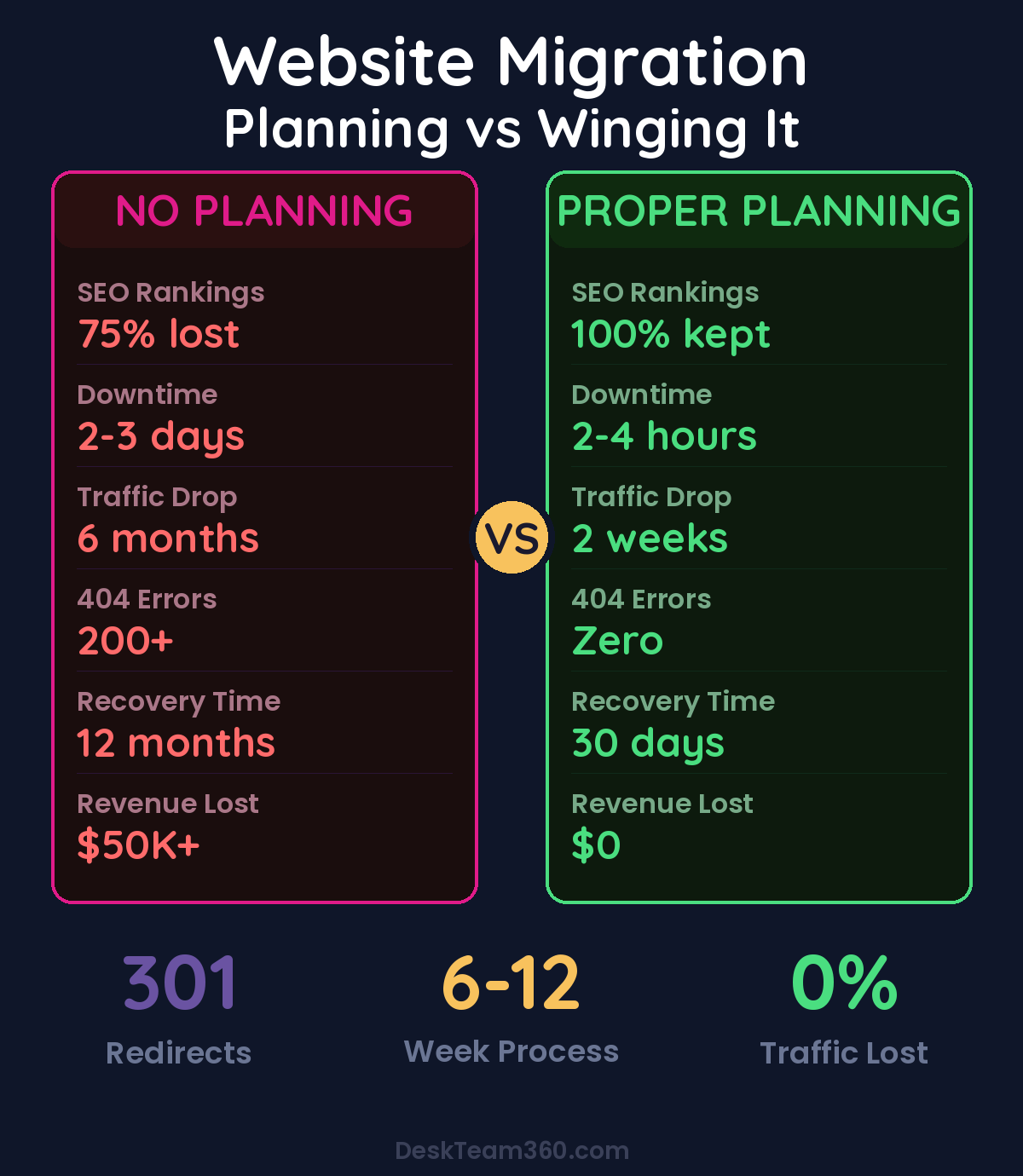
Picture this: A client calls me at 8am on a Monday morning. “Jeremy, we launched our new website over the weekend. Our organic traffic dropped 75% overnight. Did we just destroy our business?”
They’d spent six months building a beautiful new WordPress site. Modern design, better functionality, mobile-responsive, the works. But they forgot one tiny detail: SEO preservation. Three years of search rankings vanished because nobody planned for 301 redirects.
I’ve watched this horror story play out dozens of times over 12+ years. Website migrations are the digital marketing equivalent of open-heart surgery. Done right, you get a faster, more capable website on a better platform. Done wrong, you watch years of SEO work disappear overnight.
This isn’t theory. This is the exact playbook I use to migrate client sites without losing a single ranking. No fluff, no corporate speak, just the step-by-step process that actually works.
When Website Migration Actually Makes Sense
Before you burn down your current site, make sure you actually need to migrate. I’ve seen businesses migrate for terrible reasons and regret it immediately.
Good reasons to migrate: Your platform literally can’t do what your business needs. You’re selling products but stuck on a blog-focused platform. You need membership areas but your current platform has zero user management. Performance is garbage and you’ve exhausted optimization options. You’re paying $400/month for a Squarespace site that should cost $50 on proper hosting.
Terrible reasons to migrate: You’re bored with your design. Some guru on YouTube said WordPress is “better.” Your nephew builds websites and offered to help. You want to chase the latest platform trend.
Here’s the reality check: if your current site is making you money and ranking well, think hard before you blow it up. A redesign on your existing platform is almost always safer and faster than a full migration.
If how to plan a website migration is on your radar, this guide is for you. Watch out: The most expensive website migration is the one that kills your organic traffic. I’ve seen businesses lose $50K+ in monthly revenue because they didn’t plan properly. The upfront cost of doing it right is always cheaper than fixing a botched migration.
Free Template
The Ultimate Task Delegation Template
Stop guessing what to hand off. This template shows you exactly what to delegate, how to brief it, and how to QA the results.
Get the Free Template →
The Four Types of Website Migrations
Not all migrations are created equal. Understanding what type you’re dealing with determines your approach.
Platform Migration
Moving from one CMS to another. Wix to WordPress, Squarespace to Shopify, whatever. This is the most common and involves transferring all content, rebuilding design, and mapping every single URL. It’s also the riskiest from an SEO perspective.
Domain Migration
Changing your domain name entirely. Maybe you rebranded or bought a better domain. This requires perfect redirect mapping and explicit search engine notification. Even with flawless execution, expect a temporary rankings dip while Google figures out what happened.
Protocol Migration
HTTP to HTTPS. If you haven’t done this yet, stop reading and go do it right now. HTTPS has been a ranking factor since 2014, and browsers are actively shaming sites that don’t use it.
Redesign Plus Migration
Changing platform and design simultaneously. This is like performing surgery while the patient is running a marathon. If something breaks, you won’t know if it’s the new platform, the new design, or both. When possible, migrate first, then redesign. Or redesign on the current platform, then migrate the finished product.
The Pre-Migration Planning That Saves Your Rankings
This is where the real work happens. Skip this phase and you’re playing Russian roulette with your traffic.
Complete Site Audit and Inventory
Before you touch anything, document everything. Use Screaming Frog, Sitebulb, or even a free tool like XML-sitemaps.com to crawl your entire site. You need every URL, every image, every PDF, every forgotten landing page from 2019 that still gets traffic.
Export your Google Analytics data going back at least 12 months. Which pages get the most traffic? Which ones actually convert? Some pages look unimportant until you realize they’re bringing in 500 visitors a month and converting at 8%.
Pull your keyword rankings from Google Search Console or whatever SEO tool you use. These are your benchmarks. If you don’t know where you started, you can’t tell if the migration worked.
Grab your backlink profile from Ahrefs or SEMrush. Pages with the most backlinks are your highest priority to preserve. A page with 50 referring domains is infinitely more important than a random blog post nobody links to.
Pro tip: Create a spreadsheet with every URL, its monthly traffic, current ranking positions, and number of backlinks. Sort by traffic descending. The top 20% of pages probably drive 80% of your results. Mess up those redirects and your traffic is toast.
Related reading: How to Outsource Marketing Tasks Without Getting Burned (From 12 Years and $1M in Lessons).
URL Mapping and Redirect Strategy
This is the single most critical step in any migration. Every old URL needs a 301 redirect to its new equivalent. Miss one redirect for an important page and watch that page disappear from search results.
Create a redirect map with these columns: old URL, new URL, page title, monthly organic traffic, number of backlinks, and notes. If your site has 200 pages, that’s 200+ rows in this spreadsheet. Yes, it’s tedious. No, you can’t skip it or “handle it later.”
Keep URLs as similar as possible. If your old blog post was `/blog/website-design-tips/`, make the new URL `/blog/website-design-tips/`. Don’t get creative and change it to `/design-tips-for-websites/` just because you can. Google has already associated rankings and authority with the original URL structure.
For pages that don’t have a direct equivalent, redirect to the most relevant existing page. Don’t just point everything to your homepage. If you had a page about WordPress hosting and your new site doesn’t, redirect it to your general hosting page or your services page, not your homepage.
Technical SEO Preservation
These elements are easy to forget and devastating to lose. Export all title tags and meta descriptions from your current site. Recreate them exactly on the new platform unless they’re genuinely terrible. Your current titles got you to the rankings you have now.
Document your header tag structure. If your current H1 tags work, keep the same text on the new site. Same with H2s and H3s for important pages. Google uses header tags to understand page content, so consistency helps maintain rankings.
Don’t forget image alt text. It seems minor but it’s part of your page content from Google’s perspective. And if you rank for any image searches, alt text is critical for maintaining those positions.
Platform-Specific Migration Challenges
Each platform has its own quirks that can torpedo your migration if you’re not ready.
Wix to WordPress
Wix URLs are a nightmare. They use random hash-based URLs that don’t follow any logical structure. You can’t just find-and-replace `/blog/` with `/wordpress-blog/`. Every URL needs individual mapping.
Wix doesn’t offer a clean content export either. You’ll probably need a migration plugin or manual content transfer. Any Wix-specific functionality like Wix Bookings or Wix Stores needs WordPress alternatives planned in advance.
Timeline for a 50-200 page site: 4-8 weeks minimum.
Squarespace to WordPress
Squarespace does have an export tool, but it only handles basic content. Custom blocks, galleries, forms, and design elements don’t transfer. You’re essentially rebuilding the site from scratch and importing text content.
Squarespace URL structures are different from WordPress defaults, so redirect mapping is non-negotiable. Any e-commerce, forms, or membership features need WordPress replacements configured before launch.
Timeline: 3-6 weeks for most sites.
Shopify to WooCommerce
This is where e-commerce makes everything complicated. Product data migration includes descriptions, variants, images, inventory levels, and customer reviews. One mistake and you’re manually recreating hundreds of product pages.
Customer accounts and order history are tricky. Decide upfront what transfers and what doesn’t. Your payment gateway setup on the new platform needs testing with real transactions before launch.
Timeline: 6-12 weeks depending on catalog size and customization needs.
Understanding the nuances of WordPress development becomes crucial for these types of migrations.
The Migration Execution Checklist That Actually Works
Planning is done. Now here’s the execution sequence that prevents disasters.
Pre-Launch Phase (1-2 Weeks Before)
Build the entire new site on a staging environment. Not live, not discoverable by search engines, just a perfect replica ready to flip the switch. Migrate all content according to your content plan. Set up every single 301 redirect and test them individually.
Implement all SEO elements. Titles, metas, schema markup, XML sitemap, robots.txt. If the old site had it, the new site needs it too. Test every page for broken links, missing images, formatting issues. Test all forms, checkout processes, and conversion points. One broken contact form can cost you leads while you’re focused on SEO metrics.
Check site speed obsessively. Aim for under 3 seconds load time on desktop and mobile. A migration that improves design but kills performance is a net negative.
Get stakeholder approval on the staging site. Once you launch, changes become much more complicated.
Launch Day Protocol
Take a full backup of the old site first. If everything goes wrong, you can always roll back while you figure out what happened.
Point DNS to new hosting and give it 24-48 hours for full propagation. Verify every single redirect is firing correctly. I mean every single one. Spot-check isn’t enough.
Submit your new XML sitemap to Google Search Console immediately. Use the URL Inspection tool for your most important pages to request immediate indexing.
Test every form, every checkout process, every user flow. Monitor for 404 errors in real-time using Search Console or server logs.
Sites that implement monitoring on launch day catch problems 85% faster than those that check “sometime next week.” Set up alerts and watch them like a hawk for the first 48 hours.
For industry research and benchmarks, check out WordPress Developer Resources.
Post-Launch Monitoring (First 30 Days)
Check Google Search Console daily for crawl errors and 404s. Fix any broken redirects immediately. Compare traffic to pre-migration benchmarks weekly, not daily. Daily fluctuations will drive you insane.
Monitor keyword rankings weekly, not obsessively. Some fluctuation is normal as Google re-crawls and re-indexes everything. Check for orphan pages, pages on the new site with no internal links pointing to them. These can disappear from search results even with perfect redirects.
For insights on measuring the overall impact, our guide on measuring marketing ROI applies to migration success too.
What to Expect After Migration (The Real Timeline)
Even with perfect execution, expect some turbulence. Here’s what’s actually normal versus what’s a red alert.
Week 1-2: Rankings fluctuate wildly. Google is re-crawling, re-indexing, and trying to understand what happened. Your traffic numbers will look like a heart monitor. Don’t panic and don’t make changes.
Week 3-4: Most rankings stabilize near pre-migration levels. If you did everything right, some pages might even perform better because the new site is faster or has better structure.
Month 2-3: If the new platform is genuinely superior, rankings should improve beyond original levels. Better site speed, mobile responsiveness, and technical SEO can actually boost performance.
Red flag territory: Traffic drops more than 20% and hasn’t recovered after 4-6 weeks. Something went wrong. Check redirects systematically, audit technical SEO implementation, and look for crawl errors in Search Console. When this happens, it’s usually a redirect issue or technical SEO element that got missed.
The temporary dip is normal. The permanent crash is not. The difference is almost always in redirect implementation and technical SEO preservation. This is why meticulous planning matters more than anything else.
Migration Costs and DIY vs Professional
Let’s talk money, because cutting corners here costs way more than doing it right upfront.
Simple blog or brochure sites under 50 pages: $2,000-$5,000 for professional migration including design, development, content transfer, and redirect setup.
Business sites with 50-200 pages: $5,000-$15,000. More complex redirect mapping, more content to preserve, more ways for things to go wrong.
E-commerce sites with 500+ products: $10,000-$30,000+. Product data migration, customer account handling, payment gateway setup, inventory management. Everything is more complicated.
Enterprise or highly customized sites: $25,000-$100,000+. Complex integrations, custom functionality, massive content volumes.
These numbers include everything: strategy, design, development, content migration, redirect implementation, and post-launch monitoring.
DIY makes sense if your site has fewer than 30 pages, you understand 301 redirects and can implement them properly, organic search traffic isn’t a major revenue driver, and you’re comfortable with basic web development. For everyone else, hire a professional. Our guide on choosing a web design agency can help you find the right team.
The cost of fixing a botched migration is always higher than doing it right the first time. I’ve seen businesses spend $20K trying to recover rankings they could have preserved with a $5K professional migration.
The Mistakes That Destroy Migrations
After watching dozens of migrations, including some spectacular failures, these are the mistakes that cause the most damage.
Not implementing redirects at all. I’ve seen agencies launch beautiful new sites and completely forget about the old URLs. Hundreds of 404 errors overnight. Years of SEO wiped out because someone forgot the most basic step.
Using 302 redirects instead of 301s. A 302 tells Google the redirect is temporary and the old URL will come back. A 301 tells Google the move is permanent and transfers SEO value to the new URL. Always use 301s for migrations.
Launching on Friday afternoon. If something breaks over the weekend, you’re scrambling to fix it when nobody’s available to help. Launch Tuesday through Thursday, early in the day, when your whole team is alert and available.
Not backing up the old site. Things go wrong even with perfect planning. Having a complete backup means you can roll back to the old site while you diagnose and fix issues. Without it, you’re stuck trying to fix problems on a live site while bleeding traffic.
Changing everything at once. New platform, new design, new content strategy, new URL structure. If rankings tank, you have no idea which change caused it. When possible, isolate variables. Migrate first, then redesign. Or redesign on the existing platform, then migrate the finished design.
Understanding website performance factors helps prevent many of these issues before they start.
Migrate Your Site Without the Sleepless Nights
Website migrations don’t have to be Russian roulette with your traffic. With proper planning, meticulous execution, and careful monitoring, you can move to a better platform without losing everything you’ve built.
The key is treating migration like the high-stakes project it is. Every URL matters. Every redirect counts. Every technical SEO element needs preservation. Rush it and pay the price for months. Do it right and end up with a better site that performs even better than the original.
At DeskTeam360, we handle website migrations from start to finish. Strategy, planning, design, development, redirect implementation, and post-launch monitoring. All for a flat monthly rate with no surprise project fees.
Free 5-Minute Video
See How DeskTeam360 Works in Under 5 Minutes
Watch the short video and see exactly how we handle design, development, and marketing implementation — so you don't have to.
Watch the Video →