



How to Set Up Google Analytics for a Website: Complete GA4 Guide
Knowing how to set up google analytics for a website can be the difference between growth and spinning your wheels.
📋 Table of Contents
Why Most Businesses Have No Clue If Their Website Is Working
Your website cost you $15,000. Your hosting runs $200 a month. You pay for SEO services, run Google Ads, and post on social media religiously. But you have absolutely no idea if any of it is actually working.
I see this all the time. Business owners who can tell you their exact profit margins on every product they sell but couldn’t tell you how many people visited their website last month if their life depended on it. It’s like running a retail store with your eyes closed.
Google Analytics 4 is free. It takes maybe 30 minutes to set up properly. And it tells you everything about your website’s performance that your business actually needs to know. If you’re not using it, you’re just guessing about what works.
Here’s exactly how to set up GA4 for your business, avoid the common mistakes that screw up your data, and actually use the information to make better decisions.
Google Analytics 4 vs. The Old Version (That Stopped Working)
If you had someone set up analytics on your website a few years ago and haven’t touched it since, there’s a decent chance your tracking stopped working in July 2023. That’s when Google shut down Universal Analytics, the old version, and forced everyone to migrate to GA4.
The new system is actually better in almost every way. Universal Analytics was built around page views, which made sense in 2005 when websites were basically digital brochures. GA4 tracks events, which means you can see exactly what people are doing on your site. Not just which pages they visit, but what buttons they click, how far they scroll, what videos they watch, and where they give up and leave.
The platform also handles mobile and desktop tracking together instead of treating them as separate experiences. Since most website traffic comes from mobile devices now, this actually matters. You can see a customer’s entire journey from discovering you on their phone to purchasing on their laptop three days later.
Free Tool
How Much Is Freelancer Management Really Costing You?
Most agency owners have never done this math. Plug in a few numbers and see your real cost in 2 minutes.
Calculate Your Hidden Costs →
Step 1: Create Your Google Analytics Account
Starting from scratch is straightforward if you know where to click. Go to analytics.google.com and sign in with whatever Google account you use for business. If you’re using Google Workspace for your company email, use that login. It keeps everything under one roof.
Click “Start measuring” and you’ll create an account. Use your actual business name for the account name, not something clever. You’ll thank me later when you have multiple properties and need to find the right one quickly. Leave the data sharing settings checked unless you have specific privacy requirements. These help Google improve the product and don’t expose your confidential data.
Next comes creating a property, which is just GA4’s term for your website. Enter your website name or URL, select your local time zone, and pick your currency. The business details and objectives section helps Google customize your default reports. Don’t overthink it, you can always adjust these later.
Step 2: Set Up Your Data Stream
A data stream is how GA4 receives information from your website. Choose “Web” unless you’re also tracking a mobile app. Enter your full domain including the www if you use it, and give the stream a descriptive name like “Main Website.”
Here’s the important part: leave Enhanced Measurement turned ON. This automatically tracks page views, scrolling, outbound clicks, site searches, video engagement, and file downloads without any extra configuration. In the old system, setting up this kind of tracking required custom code for every single action. Now it just works.
Enhanced measurement is honestly one of the best improvements in GA4. It captures most of the user behavior that actually matters without making you become a tracking expert first.
Step 3: Install the Tracking Code
This is where most business owners either get stuck or make mistakes that mess up their data for months. There are three ways to handle installation, and the right choice depends on your technical comfort level and long-term plans.
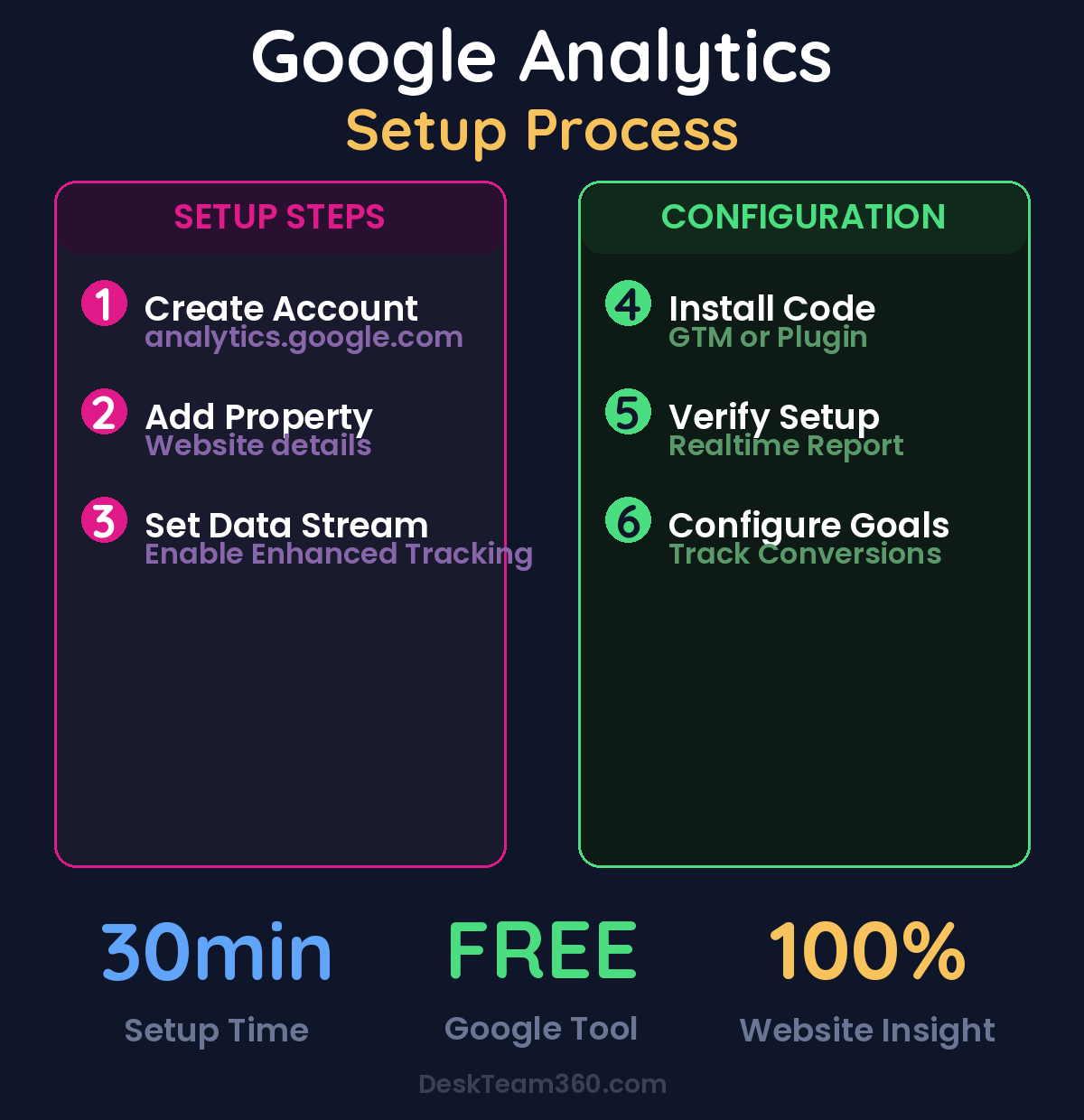
Google Tag Manager is the approach I recommend for most businesses. GTM acts as a container for all your tracking codes. You install GTM once, then manage everything else through a web interface. Want to add Facebook Pixel later? Just configure it in GTM. Need to track specific button clicks? Set up a trigger in GTM. Want to add conversion tracking for Google Ads? Another GTM tag.
The alternative is pasting the GA4 code directly into your website’s header, which works fine if analytics is all you ever want to track. But the moment you need to add other tracking tools, you’re back to editing code again.
For WordPress users, Google’s official Site Kit plugin is probably the simplest path. It connects Analytics, Search Console, and other Google tools through a setup wizard that walks you through every step. MonsterInsights is another popular option that adds an analytics dashboard inside your WordPress admin area.
Step 4: Verify Everything Is Working
Don’t skip this step. I’ve had clients think their analytics was running for six months when the code was never properly installed. It happens more often than you’d expect.
Open your website in a browser, then go to the Realtime report in GA4. You should see at least one active user, which is you. Browse around your site for a minute. The Realtime report should show your page views, the pages you visited, and your location.
Pro tip: Install the Google Tag Assistant Chrome extension and visit your website. It’ll tell you exactly which tracking tags are firing correctly and flag any problems. Green indicators mean everything’s working. Red means something’s broken and needs fixing.
For a deeper dive, see our guide on digital marketing for construction companies: the complete guide.
If you don’t see activity in the Realtime report, your tracking code isn’t installed correctly. Double-check that you’ve placed the code in the right location, and if you’re using a plugin, make sure it’s actually connected to your GA4 property.
Step 5: Configure the Settings That Actually Matter
A working installation is just the beginning. These configuration changes make the difference between having data and having useful data.
Link Google Search Console to your GA4 property. This shows you which search queries are driving traffic to your website. Without this connection, you know people are coming from Google, but you have no idea what they searched for. The setup is under Product links in your GA4 Admin section.
Set up your conversion events next. GA4 tracks plenty of events automatically, but you need to tell it which actions are actually conversions for your business. Form submissions are usually the big one. Contact forms, quote requests, newsletter signups, demo bookings. Phone calls matter too if you list your number on your website.
The conversion setup determines whether your analytics actually helps your business. Tracking page views is interesting, but tracking how many people submit your contact form and which traffic sources generate the most leads? That’s actionable information.
Enable Google Signals for demographic and interest data about your visitors. This tells you the age groups, interests, and geographic locations of your audience. It’s aggregated and anonymized data, but it helps you understand who’s actually visiting your website versus who you think is visiting.
Change your data retention setting from the default 2 months to 14 months. Two months of data isn’t enough to identify trends or compare year-over-year performance. Fourteen months gives you room to analyze seasonal patterns and long-term growth.
The Only Reports You Need to Check
GA4 has dozens of reports and most of them don’t matter for typical small business decisions. Here are the four reports that actually provide actionable insights.
The Traffic Acquisition report shows where your visitors come from. Organic search is people finding you through Google. Direct traffic is people typing your URL or using bookmarks. Referral traffic comes from links on other websites. Social media shows up as its own category. If you’re running Google Ads, that appears as paid search traffic.
This report tells you which marketing efforts are working. If you’re investing in our SEO services but organic search traffic isn’t growing, something needs adjustment. If you’re posting constantly on social media but getting zero traffic from those platforms, maybe your time is better spent elsewhere.
The Pages and Screens report ranks your content by traffic and engagement. Your highest-traffic pages should be the pages that matter most to your business. If your blog posts get more visitors than your service pages, that might be a navigation problem or a content strategy issue.
Look for pages with high traffic but low engagement time. Those pages are attracting visitors but failing to hold their attention. That usually means the content doesn’t match what people expected when they clicked, or the page design makes it hard to find what they’re looking for.
The Conversions report is where you see business impact. This shows how many leads, sales, or other conversion actions each traffic source generates. A traffic source that drives 1,000 visitors but zero conversions isn’t helping your business. A source that drives 100 visitors with 15 conversions is worth optimizing further.
For businesses focused on conversion rate optimization, this is the report that matters most. You can see exactly which pages, traffic sources, and user behaviors lead to actual business results.
Mistakes That Mess Up Your Data
After setting up analytics for hundreds of clients, I see the same mistakes over and over. Avoiding these will save you from months of questionable data and wrong decisions.
Not filtering out your own team’s website visits is probably the most common error. If you and your employees visit your website regularly for updates, customer service, or content management, that traffic inflates your numbers. Set up an internal traffic filter using your office IP address. The setting is under Data Streams in your GA4 admin area.
Watch out: Don’t mark every single event as a conversion. Page views, scrolls, and time on site are engagement metrics, not conversions. Focus on actions that directly relate to revenue like form submissions, phone calls, downloads of sales materials, and actual purchases.
Cross-domain tracking trips up businesses that use third-party tools for booking, payments, or landing pages. If someone clicks from your website to your scheduling platform or payment processor on a different domain, GA4 treats that as a new session unless you configure cross-domain tracking. You lose the connection between the marketing channel that brought them and the conversion they completed.
Never checking your data after setup might be the biggest mistake of all. I’ve had clients install analytics and then not log in for a year. Set a calendar reminder to review your key reports monthly. The data only helps if you actually look at it and make decisions based on what you find.
When Professional Help Makes Sense
Basic GA4 setup is something most business owners can handle with the right instructions. But some situations benefit from professional expertise.
E-commerce tracking requires custom configuration to monitor revenue, product performance, and purchase behavior. Multi-domain tracking gets complex when you need to maintain user sessions across different websites or subdomains. Advanced custom events for specific business actions often need proper Google Tag Manager setup.
Attribution modeling, which shows you which marketing touchpoints actually influence conversions, requires sophisticated configuration. If your customer journey involves multiple touchpoints over days or weeks, the default attribution models might not reflect reality for your business.
If your website is a primary revenue driver rather than just a brochure, getting analytics right from day one is worth the investment. Fixing bad tracking data after six months of collection is far more expensive and time-consuming than setting it up correctly initially.
Businesses with proper analytics setup make 40% better marketing decisions compared to those flying blind on website performance.
For the technical implementation side, the code installation, proper event configuration, and ongoing optimization, our guide on WordPress development services covers when it makes sense to delegate the technical work so you can focus on using the insights.
What the Data Actually Tells You
Raw numbers don’t mean much without context. Here’s how to interpret what you’re seeing and turn it into business decisions.
Traffic trends over time matter more than absolute numbers. A website getting 500 visitors a month that’s growing 20% monthly is in better shape than one getting 2,000 visitors that’s declining 10% monthly. Look for patterns, not just snapshots.
Conversion rates by traffic source reveal which marketing channels actually work for your business. Organic search might bring the most traffic, but if email marketing has the highest conversion rate, you know where to focus more effort.
User behavior on key pages shows you where people get stuck in your sales process. High traffic to your pricing page but low conversion to your contact form suggests a pricing or trust issue. High bounce rate on your homepage might mean your value proposition isn’t clear enough.
Device and location data helps you optimize for your actual audience. If 80% of your visitors use mobile devices, but your mobile site is slow or hard to navigate, that’s a priority fix. If most of your customers come from specific geographic areas, you might focus your marketing efforts there.
Making Analytics Work for Your Business
Google Analytics is a tool, not a solution. The value comes from regularly reviewing your data and making changes based on what you discover. Set aside 30 minutes once a month to check your key reports and look for patterns.
Compare your current month to the previous month and the same month last year. This smooths out seasonal fluctuations and gives you a clearer picture of actual growth trends. Look for changes in your traffic sources, conversion rates, and user behavior.
Use the data to test improvements. If a particular page has high traffic but low conversions, try different headlines, calls-to-action, or page layouts. If one traffic source converts much better than others, figure out how to get more traffic from that source.
The goal isn’t to become a data analyst. It’s to understand what’s working, what isn’t, and where to focus your efforts for the biggest impact. Analytics should make your marketing decisions easier and more confident, not more complicated.
Ready to get your Google Analytics set up properly? At DeskTeam360, we handle the entire technical implementation, from initial installation to custom event configuration to ongoing optimization. No guessing whether it’s working correctly, no troubleshooting broken tracking codes. Just clean, reliable data you can actually use to grow your business.
Free 5-Minute Video
See How DeskTeam360 Works in Under 5 Minutes
Watch the short video and see exactly how we handle design, development, and marketing implementation — so you don't have to.
Watch the Video →